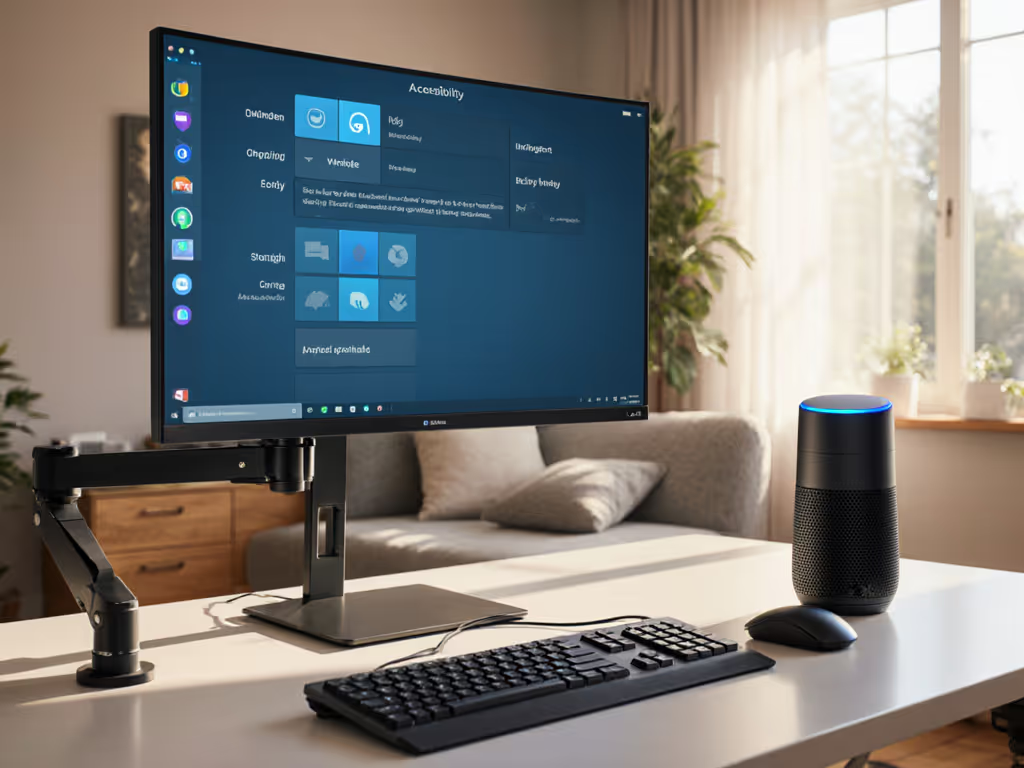
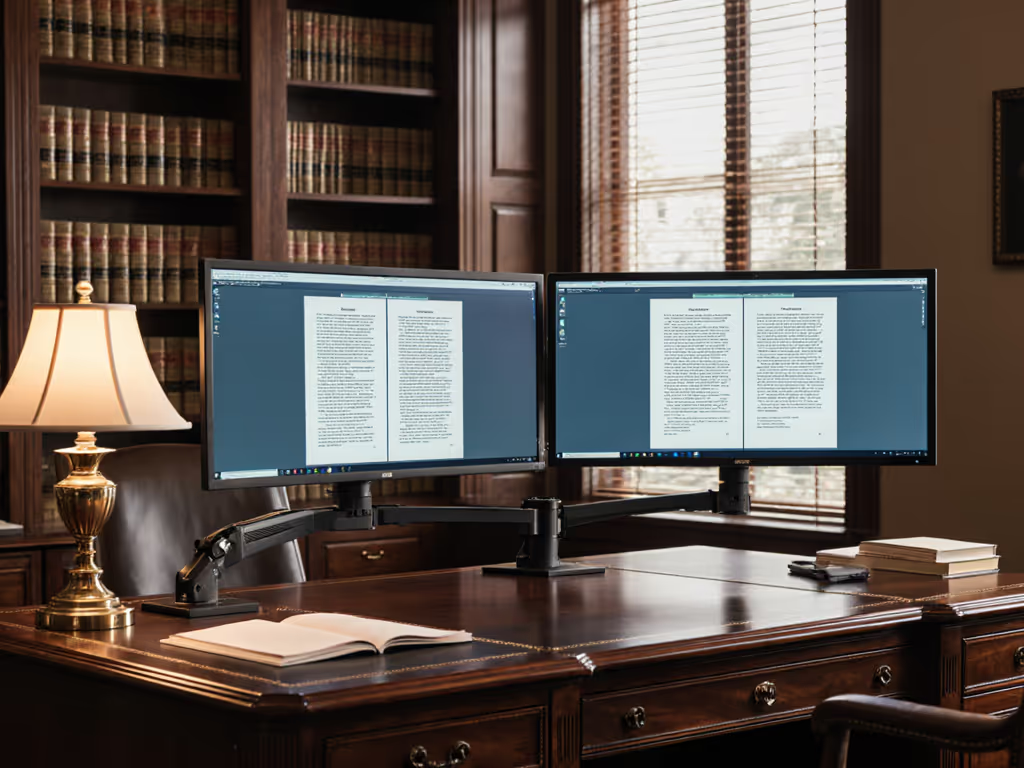
Navigating a modern workstation can feel like solving a complex puzzle when you have limited mobility. As someone who's spent years aligning screens with bodies, I want to help you explore how a voice-controlled monitor setup can transform your workspace. In this comprehensive comparison of accessibility monitor accessories, we'll connect practical voice control solutions with proper ergonomic positioning (because comfort measured in millimeters beats power measured in watts). Let's create a workspace that follows your voice commands while keeping your neck relaxed, shoulders loose, and eyes focused.
Small adjustments, big outcomes, especially when you've experienced how minor positioning changes can restore both comfort and productivity.
Understanding Your Voice-Controlled Monitor Options
Before diving into setup, let's clarify what "voice-controlled" really means for monitors. Unlike smart speakers that respond to "Hey Siri" or "OK Google", most monitors themselves do not yet have built-in voice control. Instead, we're looking at how to integrate voice assistants with your display setup for hands-free operation. Here is what's actually possible today:
Monitor adjustments via companion apps (screen brightness, input source)
Workstation height adjustments through voice-integrated standing desks
Screen navigation using system-level accessibility features
Workflow automation for frequent tasks that reduce physical strain
The key insight I've learned from years of ergonomic consulting is simple: voice control should not replace good positioning, it should enhance it. Even perfect voice commands can't compensate for a monitor sitting 30 inches too high or positioned outside your natural focal range.
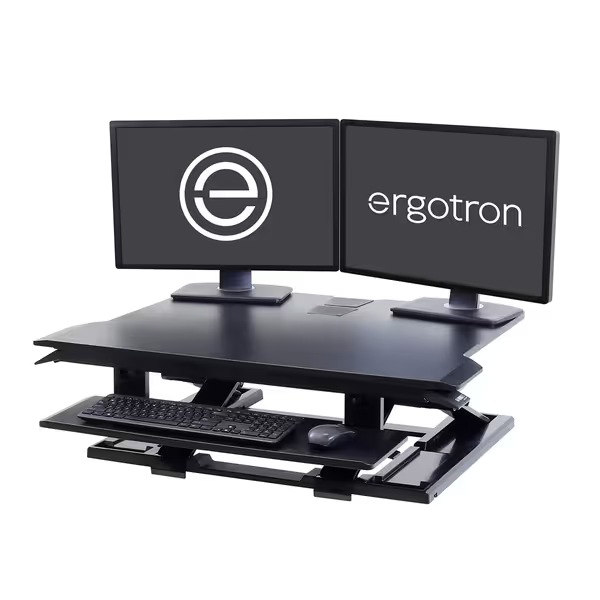
Ergotron WorkFit-TX Standing Desk Converter
Effortless sit-stand conversion, solid support for dual monitors, no assembly.
Customers find the standing desk converter solid and easy to reposition up or down throughout the day. They appreciate its functionality, space, and sturdiness, with one customer noting it can support two monitors.
Customers find the standing desk converter solid and easy to reposition up or down throughout the day. They appreciate its functionality, space, and sturdiness, with one customer noting it can support two monitors.
Step-by-Step: Building Your Voice-Integrated Monitor Setup
Step 1: Assess Your Mobility Needs
Begin by observing where your movement limitations occur. Are you:
Unable to reach physical monitor buttons?
Limited arm mobility making manual height adjustments difficult?
Unable to type to enter commands or adjust settings?
Create a simple assessment by spending one work session noting each time you need to physically adjust your setup. My early career mistake with mismatched monitors taught me that understanding your specific movement patterns is essential before implementing technology solutions.
Step 2: Choose Your Voice Control Platform
Based on your device ecosystem, select your primary voice control system:
Apple users: Voice Control (iOS 13+/macOS Catalina+) offers granular screen navigation
Android users: Voice Access provides robust screen navigation and text editing
Windows users: Voice Access allows screen element control via numbered overlays
Cross-platform: Amazon Alexa or Google Assistant can integrate with compatible displays
Key tip: Enable "Show Hints" in your accessibility settings to see command suggestions as you work. On iOS, this shows numbered overlays for screen elements (just say "Tap 3" to activate the third item). Windows Voice Access does something similar, with numbered elements you can activate by voice.
Step 3: Optimize Your Monitor Position First
This is where most guides fail people with mobility challenges: they jump straight to voice commands without establishing proper baseline positioning. Good ergonomics compounds attention and accuracy, so let's get this right.
Top of screen at or slightly below eye level: Prevents neck strain (about 20-25 inches/50-65 cm from eyes)
Screen distance: Roughly an arm's length (18-30 inches/45-75 cm)
Centered with your body: Reduces neck twisting (within 35-degree horizontal reach arc)
Tilted slightly upward: 10-20 degrees helps maintain neutral head position
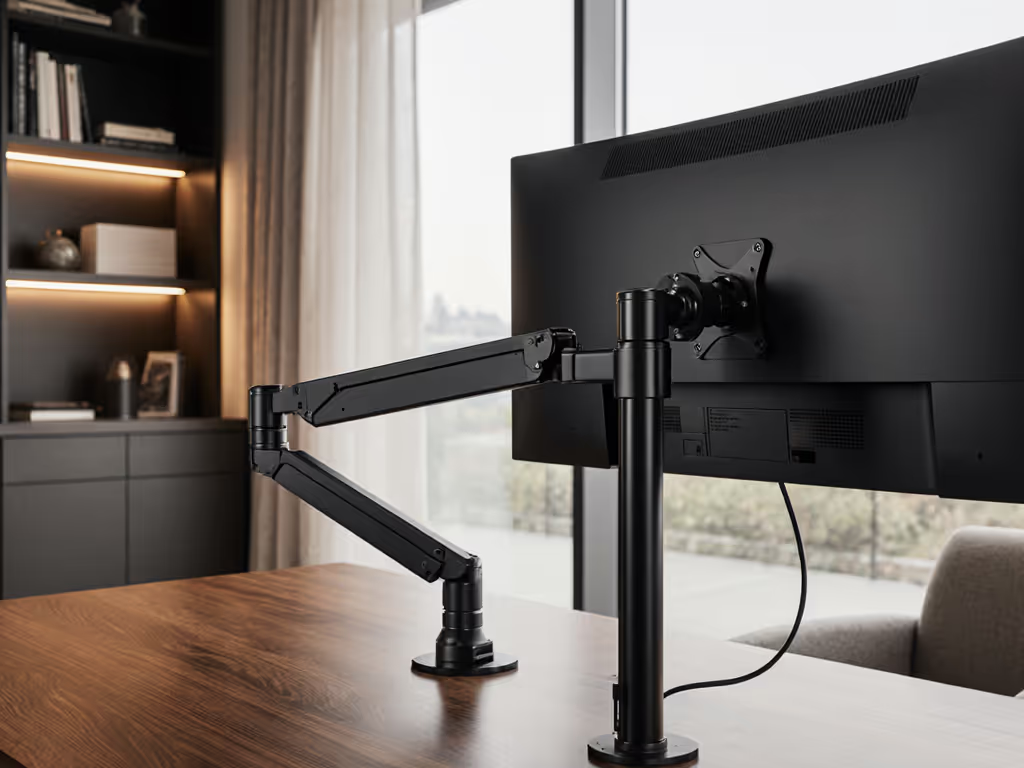
For limited mobility, these positions must be set and forget as much as possible. Position your monitor so your natural gaze falls on the top third of the screen when sitting with neutral spine alignment. To keep your screen stable without constant tweaks, compare gas spring vs counterbalance arms for your desk. Small changes here can pay off all day.
Step 4: Integrate Voice Commands for Routine Adjustments
Now that your monitor is properly positioned, identify which adjustments you need voice control for:
Brightness/contrast: "Hey Siri, set brightness to 50%"
Input source switching: "OK Google, switch to HDMI 2"
Workstation height: If using a voice-compatible standing desk
The most effective setups I've helped create tie voice commands to specific workflow moments. If you want routines that sync across Alexa, Google, or HomeKit, use our smart home monitor integration guide. For example:
"Start morning routine" (lowers workstation to seated position, sets brightness to 75%)
"Meeting mode" (raises to standing height, maximizes the video call window)
"Focus mode" (switches to dark theme, mutes notifications)
Step 5: Configure Accessibility Shortcut Gestures
For users who can make limited physical movements, accessibility shortcuts are crucial. On iOS devices, triple-click the side button to toggle Voice Control. On Android, configure a physical button in Voice Access settings as your activation key. These shortcuts:
Require less precise movement than touch gestures
Can be positioned where you can comfortably reach them
Most traditional monitor arms lack direct voice control, but these solutions work with voice assistants:
Mounting systems with companion apps: Brands like Ergotron offer mounting solutions that integrate with smart home systems. The WorkFit-TX converter, while manual, creates a stable foundation that works with voice assistants for workflow transitions (standing/sitting)
Monitor arms with smart hub integration: Systems that connect to USB-C docks with voice assistant capabilities
Screen Navigation Tools
Feature
Apple Voice Control
Android Voice Access
Windows Voice Access
Screen Navigation
Number overlays
Number overlays
Number and grid overlays
Text Editing
Full dictation and editing
Basic text editing
Basic text editing
Learning Curve
Moderate
Low
Moderate
Custom Commands
Extensive
Limited
Limited
Best For
Mac/iOS users
Android users
Windows power users
Smart Display Solutions
Samsung Smart Monitors: Some models include built-in Bixby voice control
Google Nest Hub integration: Use voice commands to control compatible displays
Alexa-enabled displays: Amazon's Fire Tablets can be mounted as secondary control surfaces
Maintaining Your Voice-Controlled Setup
Voice control systems require occasional maintenance to remain effective:
Weekly: Test your most-used commands to ensure reliability
Monthly: Update accessibility settings as your needs evolve
After major OS updates: Re-verify command functionality
When a voice command fails, have a physical fallback ready. For my clients with limited mobility, I recommend keeping one easily reachable physical button for critical functions like screen off or emergency stop. Redundancy builds confidence.
Making It Work for Your Specific Situation
Your most effective voice-controlled setup depends on your specific mobility profile. For a broader accessibility plan—including mounts and adaptive positioning—see our inclusive monitor mounts setup guide. Consider these tailored approaches:
For upper body limitations: Focus on voice navigation and screen adjustments rather than physical positioning changes
For progressive conditions: Build in adjustable mounting that accommodates future positioning needs
For temporary injuries: Use voice control to manage positioning while you heal, with easy return to manual control
Remember that proper monitor positioning creates the foundation that makes voice control effective, not the other way around. Your visual focal distance and neutral posture should be established before adding voice control layers.
Actionable Next Steps
Ready to transform your workspace? Start with these concrete steps:
Test your current voice control system for five minutes today, just enable Voice Control or Voice Access and explore basic navigation
Measure your current monitor position against the ergonomic guidelines (top of screen at eye level, arm's length distance)
Identify your top three most frustrating physical adjustments that you'd like to control by voice
Do not aim for a complete overhaul. Start with one small adjustment that makes your daily workflow more comfortable. Whether it's setting up a "launch meeting" command or ensuring your monitor sits at the proper height for your neutral posture, these small changes create compound benefits for your attention and accuracy throughout the workday.
Your workspace should support you, not the other way around. With thoughtful voice integration and proper ergonomic positioning, you can create a workspace that adapts to your needs, not your limitations. Small adjustments really do lead to big outcomes when you prioritize comfort as your primary performance spec.
Related Articles
Mounts, Arms & Stands: Comparisons and Installation Methods
Learn how to mount transparent displays on glass safely with structural checks, thermal/vibration allowances, and tiered systems that prevent costly failures.
Choose mounts that prevent drift, support dual setups and Stream Decks; learn specs, warranty traps, and picks that stabilize framing in OBS and cut downtime.
Choose modular monitor arms with serviceable hinges and flexible mounts to cut replacement cycles, support upgrades, and protect ergonomics and ROI over years.