Mixed Aspect Ratio Setup: Cable & Alignment
By Elena Petrovic • 16th Apr
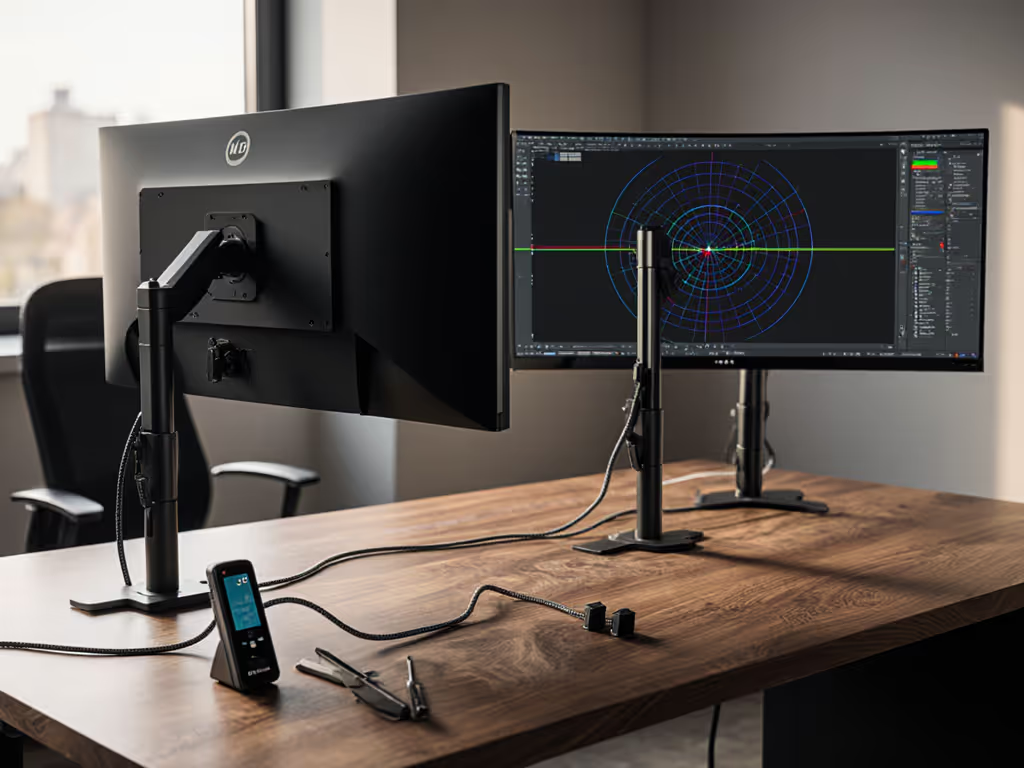
Most discussions of mixed aspect ratio monitor setups treat the displays as isolated visual islands, each with its own color profile, resolution, and refresh rate. But when you're running an ultrawide alongside a standard 16:9 monitor, or combining a 21:9 cinema display with a 4:3 reference panel, the mechanical consistency of your installation becomes as critical as the pixels themselves. The cables carrying data across these different aspect ratios, the physical alignment of their surfaces, and the stability of their mounting systems create a unified viewing environment (or they fracture it). This distinction matters profoundly in workflows where precision compounds across multiple frames: video grading, multi-window design work, gaming across competitive and cinematic displays, and color-critical retouching.
When displays sit at different heights or angles, when cables flex under the weight of moving arms, or when the connection interface introduces micro-vibration, the perceived consistency of your image, and your eye's trajectory across dissimilar aspect ratios, deteriorates. Consistency is not merely aesthetic; it anchors color perception, spatial judgment, and the ergonomic stability required for sustained work.
Why Aspect Ratio Mismatch Demands Mechanical Precision
Aspect ratios don't merely change how images fill the screen. They influence lens choice, composition strategy, and the spatial relationships your brain has learned to expect. The human visual system is remarkably adaptive to frame geometry, yet this adaptability comes with a cost: when the frame changes, when you glance from a 16:9 standard monitor to a 21:9 ultrawide, the eye must recalibrate its spatial assumptions.
In grading, where a timeline occupies the ultrawide and reference windows float on the standard monitor, any physical instability or misalignment amplifies perceived color shifts. Micro-motion in a loosely toleranced arm can shift the light path and alter reflections on the screen surface. The ultrawide, bearing more mass and weight distribution across its vertical axis, demands different mechanical support than a compact 24-inch standard display. If these supports operate at different stiffness levels or allow different degrees of drift, your eye cannot establish a stable reference point for comparison.
This is particularly acute in color workflows. The moment you transition between displays of different aspect ratios and sizes, you're also crossing a perceptual boundary. Mismatch the mechanical stability of their mounts, or allow cables to introduce drag or flex, and you've compromised the certainty that underpins critical color decisions.
Cable Integrity Across Different Aspect Ratios
The cables carrying video data to mixed-aspect-ratio displays must be matched not only to the video standard (HDMI 2.1, DisplayPort 1.4, Thunderbolt) but also to the physical path they travel and the strain relief they encounter.
Cable routing becomes asymmetrical when displays sit at different heights. For a deeper look at arm-integrated channels versus add-on sleeves, see our monitor arm cable management comparison. A standard 27-inch monitor on a fixed stand and a 34-inch ultrawide on an articulating arm pull cables in opposing directions. If both cables originate from the same docking station or GPU output, any flex in the ultrawide's arm translates into intermittent stress on its cable connector (the entry point where mechanical fatigue accelerates). Over months, this micro-flexing degrades the connection, leading to intermittent signal loss, black screens during demanding tasks, or a complete loss of video.
Ultrawide monitors, because of their width and center-of-gravity distribution, typically require heavier-duty mounts with greater damping. If the cable is routed along the arm's rear cable raceway, this motion compounds the strain. Standard monitors on lightweight fixed stands do not experience this wear, creating a false sense that the setup is stable when, in fact, one arm is slowly failing.
Cable shielding and grounding assume a stable geometry. DisplayPort cables, particularly those carrying high-bandwidth signals like 4K@120Hz or 5K, are shielded to reject electromagnetic interference. But this shielding is engineered for a cable run at rest. When an arm moves and the cable flexes, small discontinuities in the shield can form micro-gaps, allowing interference to couple in. A standard 1080p signal may tolerate this; a 5K or ultrawide HDR signal will glitch or drop entirely.
Cable integrity is not a static property; it decays with motion and stress over time.
The practical solution is to route cables independently, with dedicated strain relief for each display:
- Use separate cable management clips along each arm, ensuring cables do not cross or tangle
- If using a single docking station, employ a low-profile right-angle adapter at the source to reduce stress on the dock connector when the arm articulates
- For ultrawide displays, select a cable rated for the full bandwidth of your intended use (e.g., DP 1.4 HBR3 if you require 4K@120Hz or 5K@60Hz), and use a ferrite core or actively-shielded cable to reject high-frequency noise introduced by the motion of the larger mass
- Secure cables behind the monitor arm at intervals no greater than 12 inches to prevent them from becoming pendulums during articulation
Alignment and Height Matching Techniques
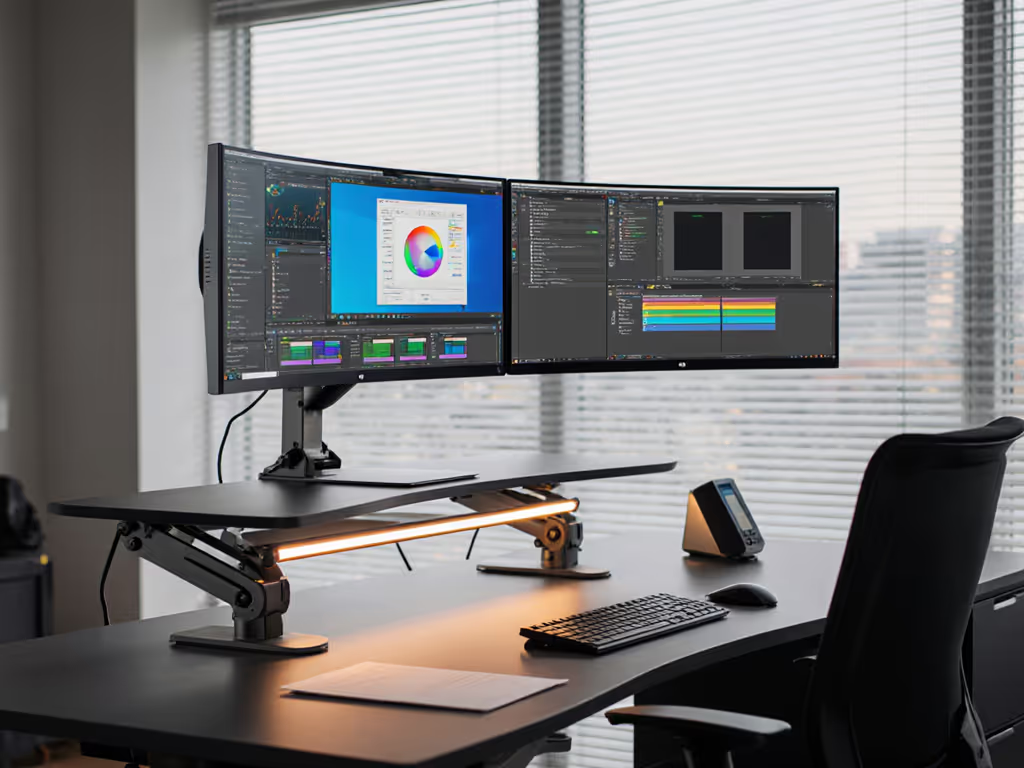
When you combine displays of different aspect ratios, their physical mounting heights become a design choice, not an afterthought. Standard guidance suggests aligning the top of both monitors or centering them at eye level. For step-by-step positioning fundamentals, see our ergonomic monitor height guide. But with mixed aspect ratios, this advice breaks down.
A 34-inch 21:9 ultrawide has a much shallower vertical dimension than a 27-inch 16:9 monitor. If both are mounted with their tops aligned, the ultrawide's center sits substantially lower, a fact confirmed by simple measurement and ergonomic research. This forces the eye to move downward when scanning from the standard monitor to the ultrawide, creating neck strain over extended periods.
The solution is to calculate the visual center of each display and align those centers at your eye level during typical viewing posture:
- Measure the physical height of each display (not the diagonal size)
- Position the standard monitor so its center is at approximately eye level (approximately 15 to 20 degrees below horizontal sight line)
- Raise the ultrawide until its center is at the same angle; this typically means the ultrawide sits 3 to 6 inches higher than the standard monitor's top edge
- Verify with a level and adjust the arm tension until both displays remain stationary
This alignment preserves the lateral scanning pattern of your workflow while minimizing vertical eye travel. Treat mounts and light as part of your design, as they determine whether the aspect ratio transition feels natural or forced.
Physical spacing also matters. Displays that sit too close together force the eye to accommodate rapidly; displays too far apart interrupt workflow continuity. A gap of 1–2 inches between the bezels allows the eye to recognize the transition while maintaining a cohesive visual field. If the displays are at different heights due to aspect ratio mismatch, this gap becomes irregular, creating the illusion of misalignment even when both are mechanically sound.
Mechanical Stability Under Load
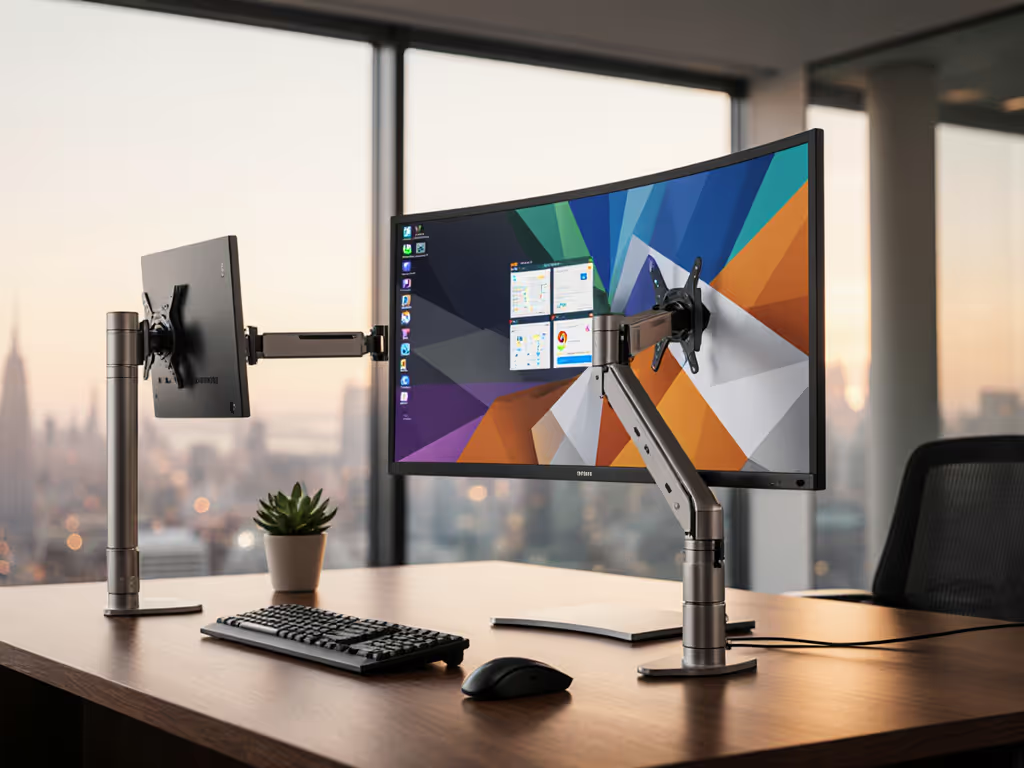
Different aspect ratios often correlate with different physical weights and load distributions. A 32-inch 4K standard monitor may weigh 12 to 15 kg; a 38-inch 3440×1440 ultrawide may weigh 8 to 10 kg but spans a much wider footprint. The center of gravity is not at the geometric center: it shifts toward the heavier components (power supply, backlight array). An arm rated for 15 kg at its rated extension may sag noticeably when that load is positioned 2 inches forward of the mount point.
When running mixed displays on articulating arms, select arms with:
- Independent tension adjustment, allowing you to dial in stiffness separately for each arm based on load and reach
- Verified weight specifications that include not just maximum load but maximum load at the rated extension (the distance from the arm's pivot to the monitor's VESA attachment point)
- Damping characteristics documented for the range of motion you'll use daily; heavier damping resists drift but may make repositioning cumbersome
- Cable management integration that does not add flex or introduce points of mechanical weakness
Arms with poor damping or inadequate stiffness allow sub-perceptual motion, the kind of micro-sway that doesn't register as obvious wobble but shifts reflections on the screen surface by fractions of millimeters, altering perceived blacks and edge sharpness. To choose the right mechanism for your loads, compare gas spring vs counterbalance arms. Over hours of detailed work, this instability accumulates as eye strain and reduced confidence in color decisions.
Workflow Optimization: Transition Zones
The aspect ratio transition solution is not simply mechanical; it is also conceptual. Recognize that your eye experiences a discontinuity when moving between vastly different aspect ratios. Symmetrical, balanced compositions reward large frames; rapid scanning and multi-window workflows often benefit from narrower vertical aspect ratios.
Optimize your display arrangement by assigning tasks to the geometry best suited to them:
- Ultrawide (21:9 or wider): Timeline scrubbing, reference windows, comparison panels, architectural or panoramic content review
- Standard 16:9 or taller: Vectored design work, single-document focus, chat/notification windows, color pickers and adjustment panels
- Transition consideration: Place active work, grading, retouching, on the display geometry that dominates your session, reserving the secondary display for reference or controls
This arrangement reduces the frequency and cognitive load of aspect ratio transitions, allowing your eye to settle into stable viewing patterns.
Forward Compatibility and Modularity
A mixed display workflow optimization strategy should anticipate change. Displays will age; color performance drifts, backlight uniformity degrades, and newer standards (DP 2.0, HDMI 2.1 full features) will emerge. Build your cable and mounting infrastructure for modularity:
- Use VESA-standard mounting plates that accept displays from multiple manufacturers
- Specify cables by their electrical standard (DP 1.4 HBR3, HDMI 2.1 with full lanes) rather than by monitor model; this permits simple swaps as displays are replaced
- Design your docking or GPU routing to support future displays with different aspect ratios without requiring arm replacement
- Document your exact setup: monitor models, arm load ratings, cable specifications, and alignment measurements. This becomes invaluable when adding a third display or reconfiguring after relocation
Consistency is preserved not by static perfection but by systems designed to adapt predictably. The mount, the cable, and the light path are not ancillary to your image; they are part of the image pipeline.
Conclusion: Precision in Motion
Mixed aspect ratio monitor setups succeed when three elements align: mechanical stability that resists drift and micro-motion, cable routing and integrity that adapts to asymmetrical geometry, and display alignment that respects the visual perceptual boundaries created by different frame dimensions. None of these factors can be isolated; each depends on the others.
When you move beyond single-monitor workflows into multi-aspect-ratio environments, you move from passive alignment (just place them on the desk) to active design. Measure your displays' physical centers, route cables with dedicated strain relief, select arms with documented load ratings and damping curves, and verify that the entire system remains stable under the conditions of your actual work (typing, arm movement, temperature variation across a day).
This rigor is not perfectionistic excess. It is the foundation upon which consistent, high-confidence creative and professional work is built. The alternative is ambient instability: displays that drift slightly with arm fatigue, cables that age prematurely under flex, and an eye that never quite settles into a stable reference frame. Neither your image nor your physiology benefits from that uncertainty.
Related Articles