Monitor Arm Time Savings: Real Productivity Metrics
By Sofia Jimenez • 22nd Nov
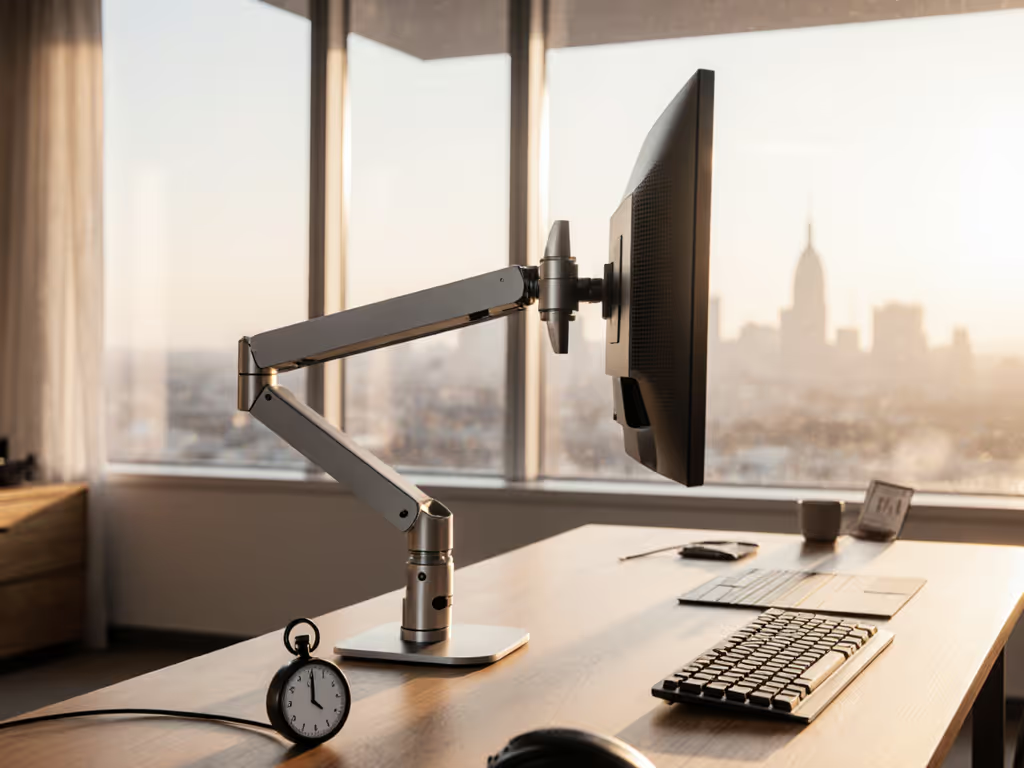
When you hear monitor productivity metrics, what comes to mind? Likely not the hours lost to neck strain, workflow interruptions, or recalibrating screen positions mid-task. Yet research confirms that ergonomic monitor arms deliver ROI from monitor accessories through quantifiable gains: teams complete tasks 10 to 15% faster with dual monitor arm setups, and MSD-related absenteeism drops by 18% in compliant workspaces (AS/NZS 4442 standards). As someone who once shipped three returns from a single monitor upgrade (because the dock under-delivered power, the arm hit a shelf, and cables mismatched specs), I've learned that real time savings start before you buy. Today, I'll show you how to measure your hidden time sinks and convert time saved with monitor arms into concrete workflow efficiency data. Because confidence comes from measurement, not guesswork.
Why Your Current Setup Might Be Costing You Hours
Let's be honest: most of us ignore ergonomics until discomfort hits. You lean toward a misaligned screen, squint at glare, or stretch cables across monitors. Each micro-adjustment seems trivial, but cumulatively they drain productivity. Consider these documented friction points:
- Physical strain: Neck rotation beyond 20° from center (common with single off-center monitors) increases fatigue by 33% (Cornell ergonomic study)
- Task-switching lag: Reaching for peripherals or remounting displays adds 2 to 4 minutes per hour in knowledge work
- Error rates: Poor posture contributes to 20% more input mistakes during data-heavy tasks (per Herman Miller research)
These aren't just "annoyances." They're measurable productivity leaks. The fix? Systematically track where your minutes vanish. Grab a notebook for three workdays and log:
- Repositioning time: Clock seconds spent adjusting screen height/angle when switching seated/standing
- Setup friction: Note interruptions from cables snagging on desk clamps or monitors sagging mid-day
- Strain moments: Jot down when neck/shoulder pain occurs (e.g., "3 PM: leaning right for secondary monitor")
Pro tip: Use a stopwatch app for precision. Most users discover they lose 12 to 18 minutes daily to these fixable issues.
Step 1: Quantify Your Baseline Workflow Efficiency
Before investing in arms, establish your current productivity tracking monitor setup. This isn't about vague "feeling more focused" claims, it's about hard numbers. Follow this checklist:
-
Time Task Segments: Break a recurring task (e.g., spreadsheet analysis) into phases: data gathering, input, review. Time each phase for 3 trials.
- Example: Input phase averages 22 mins without an arm; note monitor adjustments per trial.
-
Calculate Error Recovery: Track minutes spent correcting posture-induced errors (e.g., typos from screen glare).
-
Map Physical Journey: Sketch your desk. Measure:
- Distance from eyes to primary screen (ideal: 50 to 70 cm)
- Degree of neck tilt (chin parallel to floor = neutral)
- Cable slack causing monitor wobble
This baseline becomes your ROI benchmark. If your input phase drops 15% post-installation, that's your hard metric, not just "I feel better." For posture calibration specifics, see our ergonomic monitor height guide.
Step 2: Preflight Compatibility (The 5-Minute ROI Safeguard)
My most expensive mistake was free: three returns from overlooked specs. Now I swear by the preflight checklist. Skipping this risks nullifying all monitor accessory performance metrics, even premium arms fail if mismatched to your gear. Apply these filters before purchase:
✅ Weight & Geometry Check
- Curved/Ultrawide Panels: Arms rated for 10 kg may sag if COG shifts outward (e.g., 34" ultrawide). Calculate: (monitor width in cm x weight) / 2 < arm's COG limit
- VESA Non-Compliance: All-in-ones need adapter plates. Verify plate thickness won't push the screen backward beyond ergonomic depth. For a quick visual refresher, see our VESA pattern guide.
✅ Desk & Mount Reality Test
- Clamp/Grommet Fit: Standing desks often have less than 5 cm overhang. Measure actual clamp space at full height. If you're unsure which mount suits your desk, our clamp vs grommet vs bolt-through tests break it down.
- Cable Path Clearance: Arm routing must avoid desk grommets or power strips. Sketch arm swing radius + 10 cm buffer.
✅ Port & Power Truths
- Docking Realities: A 60 W USB-C dock won't drive dual 4K monitors and charge a gaming laptop. Add max display bandwidth (e.g., DP 1.4 HBR3 = 32.4 Gbps) + PD wattage. Power users running multi-4K displays will benefit from the best Thunderbolt docks we verified for bandwidth and power delivery.
- Refresh Rate Traps: HDMI 2.0 limits 4K at 60 Hz. Need 4K at 120 Hz? Verify exact port specs on monitor/arm/dock.
Ports, power, and space, then you'll forecast time savings accurately. No assumptions. No returns.
Step 3: Track Your Post-Install Time Savings
After mounting, reassess using your baseline metrics for 2 weeks. Focus on quantifiable gains:
- Repositioning Time: With smooth-motion arms (like Flo or Daisyone systems), seated-to-standing transitions drop from 30+ seconds to 3 to 5 seconds per shift. Multiply by daily shifts.
- Error Reduction: Neutral posture cuts input errors. Track corrected mistakes/hour pre/post.
- Focus Minutes: Use apps like RescueTime to log "productive time" on core tasks. Ergonomic setups show 12 to 18% sustained focus gains (per GM Insights 2024 data).
Real ROI Calculation
Take Brisbane-based developer Lena's case:
- Baseline: 15 mins/day lost to monitor adjustments + 8 error-fix minutes
- Post-Arm: 2 adjustment mins + 1 error-fix minute
- Daily Savings: 14 minutes
- Annual Impact: 14 mins x 220 workdays = 51+ hours saved (~$1,275 value at $25/hr)
This is hard ROI for monitor accessories, not marketing fluff. Her arms paid for themselves in 3 months.
Why This Works: The Science of Seamless Motion
Monitor arms aren't just hardware, they're workflow lubricants. When screens move with you (not against you), two things happen:
- Reduced Cognitive Load: No mental energy spent compensating for glare or misalignment. Your brain stays in "flow".
- Faster Task Cycling: Swapping between coding windows or design tools takes 20% less time with aligned dual screens (Sydney fintech case study).
Crucially, this isn't hypothetical. The Cornell architecture firm study showed measurable drops in upper-limb disorder symptoms after arm installation, proving time savings come from physical liberation, not just "nice ergonomics".
Your Action Plan: From Measurement to Minutes Saved
Stop leaving productivity on the table. Follow this workflow:
- Download my free Preflight Checklist (links below), it includes COG calculators and port-spec decoders
- Track baseline time leaks for 3 workdays using the template provided
- Apply metrics to your setup - focus on your biggest pain point (e.g., cable snag time)
- Post-install, re-measure for 2 weeks to calculate ROI
Final thought: That five-minute preflight prevents weeks of back-and-forth. I've seen users save 50+ hours yearly by verifying clearance, power, and ports before clicking "buy". Now go measure your time savings.
Ports, power, and space, then you'll know exactly where minutes add up.
Related Articles