Multi Monitor Mounts: Fix Cross-Platform Color & Workflow
By Ravi Patel • 12th Nov
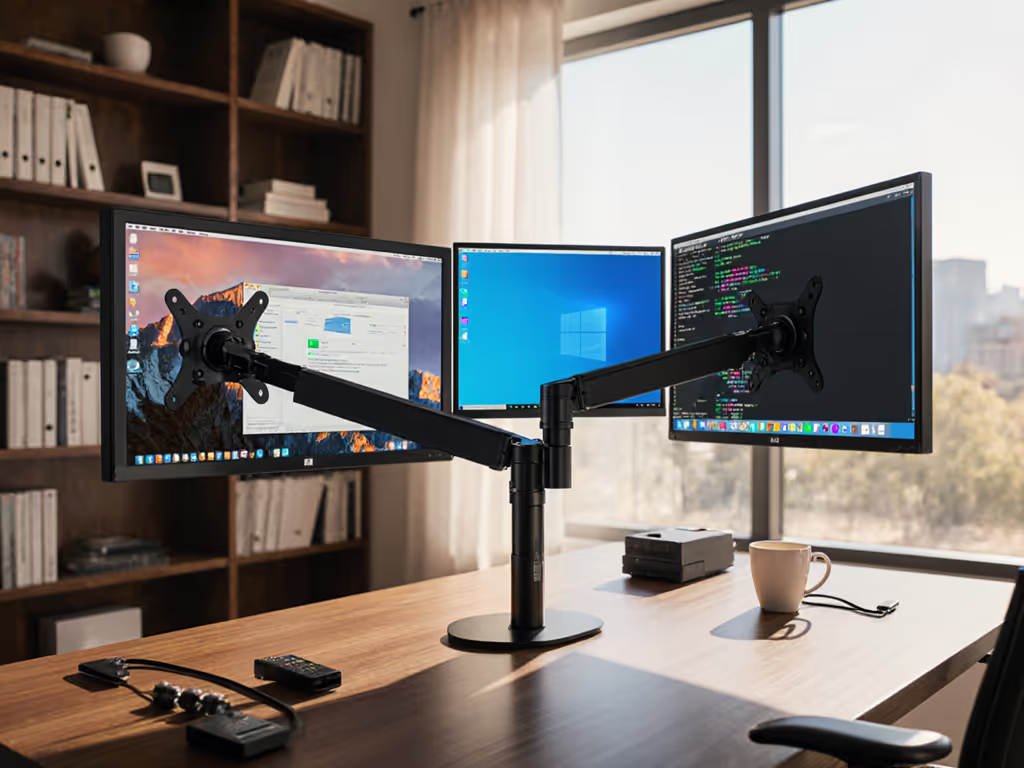
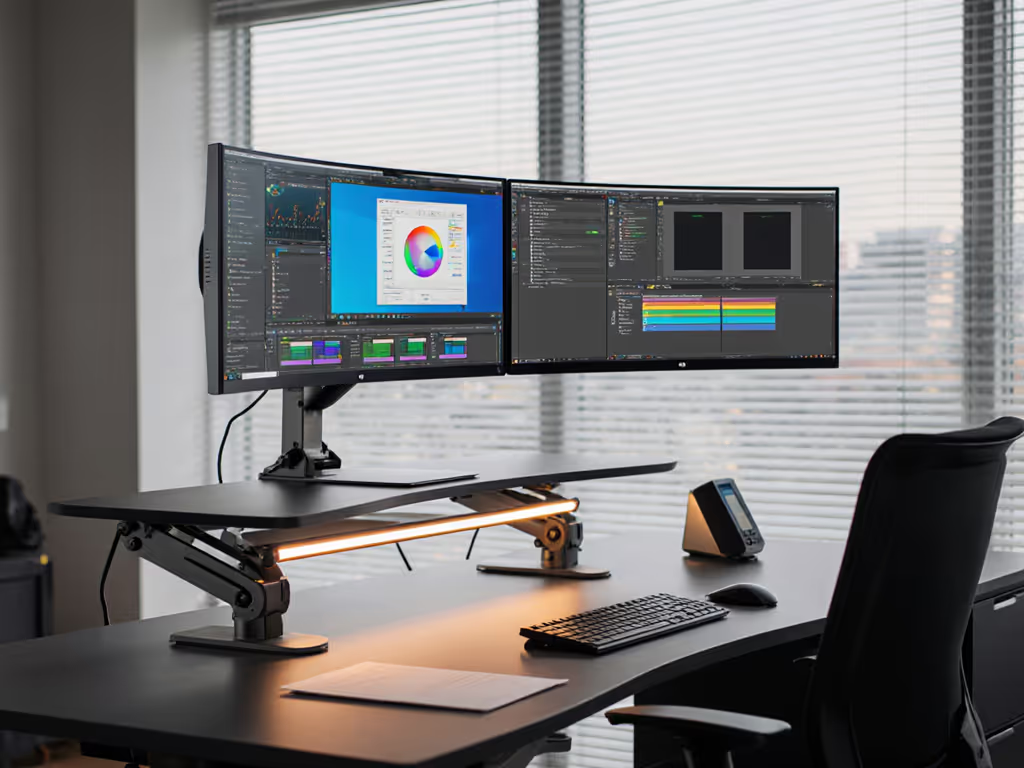
When you invest in multi monitor mounts that work flawlessly across your cross-platform workspace, you're not just buying hardware, you're purchasing time, consistency, and peace of mind. For professionals juggling Mac, Windows, and Linux environments, inconsistent color output between displays and OS-specific configuration headaches turn what should be a productivity powerhouse into a constant calibration chore. I've modeled total cost of ownership for desk gear for over a decade, and I've seen how the wrong mounting and calibration approach creates hidden costs that compound with every system switch. The cheapest setup is the one you don't replace (buy for the hinge, not the hype).
7 Smart Steps to Seamless Multi-Platform Monitor Setup
1. Start with Mounting Infrastructure That Outlives Your Hardware
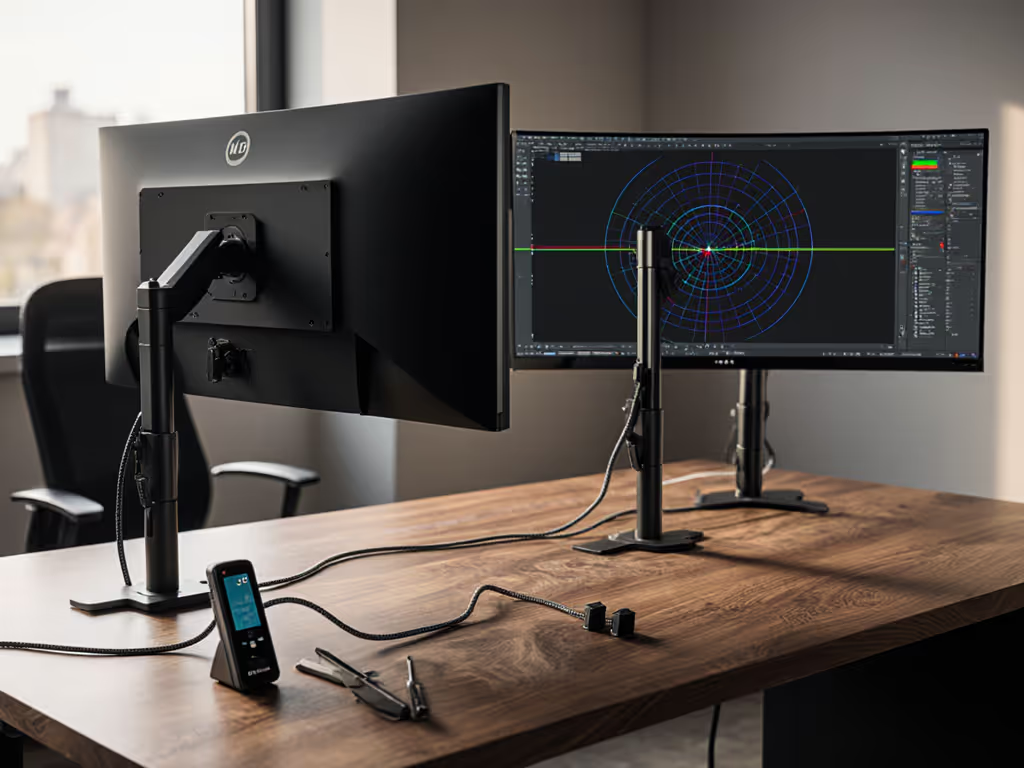
Before you worry about color calibration software or OS settings, address your foundation. Your multi monitor mounts must accommodate every display you own or might reasonably acquire (including weight, VESA pattern, and curve compatibility). I once saved money on a bargain arm for a midweight 27-inch. Three months later, the tilt joint drifted, and re-tightening chewed the screw head. The repair cost me more than if I'd bought quality once.
Pay once for the hinge you'll never think about.
When evaluating arms:
- Verify weight capacity at maximum extension (not just static)
- Confirm VESA pattern compatibility (75x75mm and 100x100mm are standard)
- Check for tilt/swivel range that accommodates your monitors' center of gravity
This upfront verification prevents the most common cross-platform failure: discovering your "universal" mount can't handle the subtle weight differences between your iMac and gaming PC displays.
2. Standardize Color Calibration Protocols Across Platforms
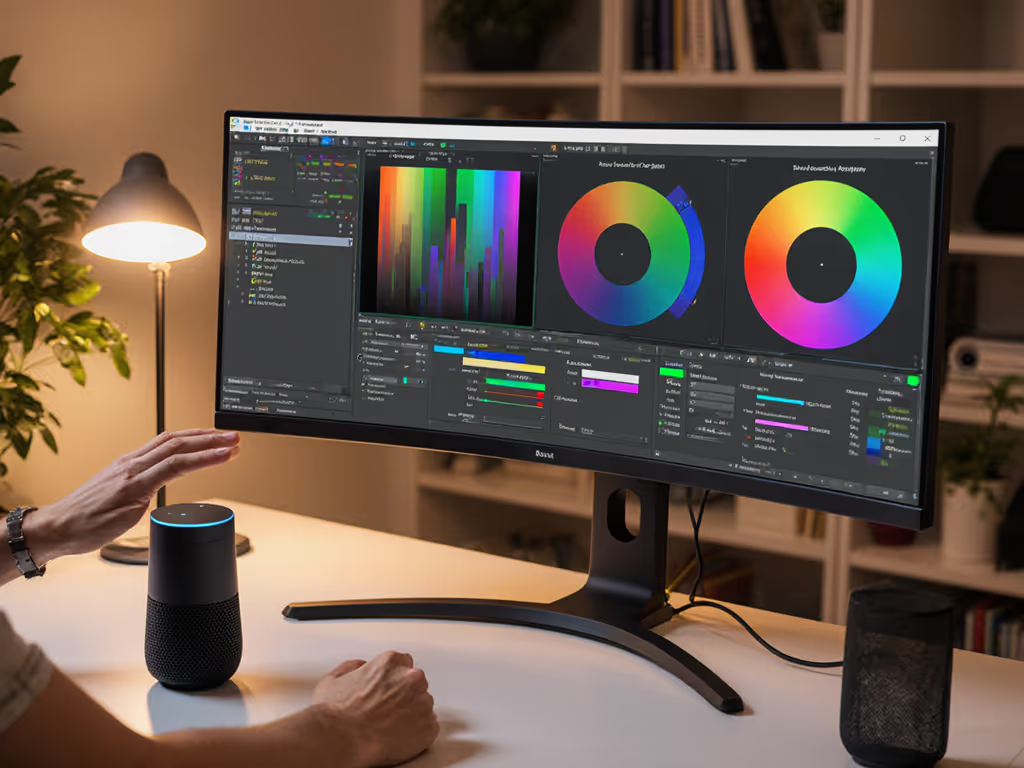
Consistent color calibration requires hardware-level standardization before software can work. Your $300 display profiler works differently on macOS than Windows without proper configuration. For glare control that protects color accuracy, consider our monitor hoods for color-critical work. For true macOS to Windows color matching:
- Create identical ICC profiles on each OS using your hardware calibrator
- Store profiles in a shared network location (not buried in OS-specific directories)
- Verify gamma target (2.2 for Windows, 1.8-2.2 for Mac; standardize to 2.2 for cross-platform)
- Document each monitor's native white point and luminance capabilities
Professionals using creative applications report up to 37% time savings when they maintain identical calibration workflows across platforms rather than recreating profiles for each OS. Cross-platform color management isn't just about accuracy, it is about reclaiming hours lost to constant recalibration.
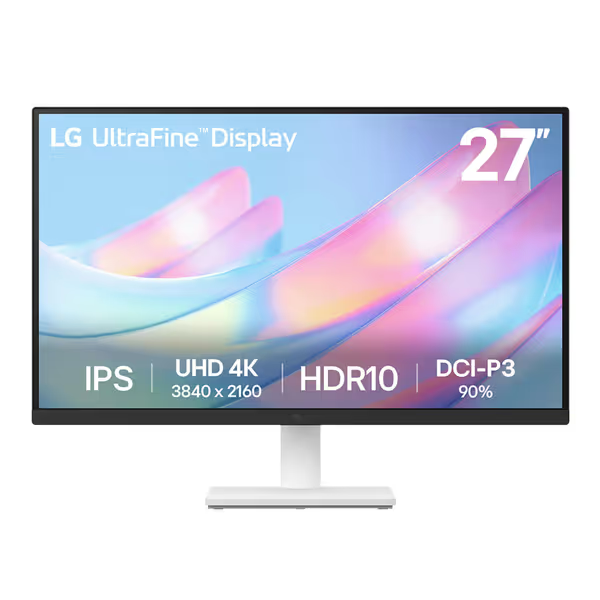
LG 27US500-W Ultrafine Monitor
Vivid 4K HDR10 display for creative work and gaming at a great value.
$215
Resolution4K UHD (3840x2160)
Resolution4K UHD (3840x2160)
Pros
Crisp 4K UHD picture with HDR10 support
Good value for coding and gaming
OnScreen Control for easy adjustments
Cons
Mixed reviews on color accuracy and brightness
Customers praise the monitor's crisp picture quality and high-quality displays, considering it a great deal for a 4K display.
Customers praise the monitor's crisp picture quality and high-quality displays, considering it a great deal for a 4K display.
3. Implement a Cross-Platform Docking Strategy
Your docking station determines whether OS switching workflow feels seamless or like a system reset. Not all docks handle multi-monitor setups equally across platforms:
- Macs have stricter limitations on multi-monitor output (especially pre-M1 Pro/Max)
- Windows handles more displays natively but requires proper driver configuration
- Linux often needs manual configuration for display ordering and resolution
When selecting docks, prioritize:
- Clear documentation of OS-specific limitations
- Separate firmware versions for Mac/Windows that maintain settings
- USB-C passthrough that works consistently across platforms
The best solutions maintain your multi-monitor layout regardless of which system you're connected to. If you're upgrading docks or cables, see our USB-C monitor accessories guide to avoid compatibility surprises. This eliminates the drag of rearranging windows after every switch, time that adds up to hours per week in a typical hybrid workflow.
4. Document Your Linux Multi-Monitor Configuration
Linux multi-monitor configuration requires more manual setup than commercial OSes, but proper documentation transforms it from a headache to a repeatable process. After setting up your displays correctly:
- Run
xrandr -queryto document current configuration - Save the output to
~/display-configs/workstation-2024.txt - Create a shell script that applies your preferred layout
- Test it after major updates
This simple system documentation creates a fail-safe when your display arrangement inevitably resets after a kernel update. I've seen creatives lose 2-3 hours per month to this single issue until they implemented this basic documentation practice.
5. Build a Tiered Upgrade Path for Your Mounting System
Smart buyers consider not just current needs but future configurations. If you're planning a curved or ultrawide panel, start with our ultrawide stability guide so your arm doesn't sag or drift. With monitor technology evolving rapidly (8K displays, curved ultrawides, taller aspect ratios), your mounting system should accommodate evolution without replacement.
Create a tiered recommendation for yourself:
- Base tier: Handles your current displays with room for 10-15% weight increase
- Mid tier: Supports one additional monitor or heavier displays (curved/ultrawide)
- Future tier: Accommodates increased depth for monitors with thicker bezels or added peripherals
This approach delivers better price-to-performance ratios than constantly replacing mounts as your needs evolve. Many professionals I've consulted with report saving $200+ over three years by choosing mounts with known upgrade paths rather than the cheapest option.
6. Verify Cross-Platform Color Management Tools
Not all color calibration software works consistently across operating systems. Before investing in expensive solutions, verify cross-platform compatibility:
- DisplayCAL works on Windows, macOS, and Linux with identical features
- X-Rite's i1Profiler has inconsistent feature sets across platforms
- Built-in OS tools (Apple Display Calibrator, Windows Color Calibration) differ significantly
For mission-critical color work, I recommend hardware calibration with consistent software like DisplayCAL. The $50 investment in a cross-platform solution prevents the $500+ cost of reprinting materials due to color mismatches between platforms.
7. Plan for the Mac Multi-Display Limitation
Apple's multi-display limitations vary significantly by model and macOS version. For platform-specific hardware choices, see monitor mounts by OS to align mounts and software with Windows, macOS, and Linux workflows. Rather than fighting these constraints, build your cross-platform workspace to accommodate them:
- M1/M2 Macs (non-Pro/Max): Limited to one external display
- M1/M2 Pro/Max/Ultra: Support up to two 6K displays or four 4K displays
- Intel Macs with Thunderbolt 3: Typically support two external displays
For true multi-monitor flexibility with Macs, pair your primary display with a KVM switch that maintains your multi-monitor setup when switching to Windows/Linux. This provides the cleanest OS switching workflow without constantly unplugging monitors.
The Long-Term Value of a Strategic Approach
Your multi-monitor setup isn't just hardware (it is the foundation of your daily workflow). Every minute spent reconfiguring displays, recalibrating colors, or troubleshooting compatibility issues is a minute lost from productive work. The most cost-effective solutions prioritize serviceability, warranty coverage, and documented compatibility over initial price.
By building your multi monitor mounts infrastructure with cross-platform use in mind, you create a system that evolves with your needs rather than forcing constant replacements. Remember my core principle: Buy for mechanisms, not marketing.
Related Articles